


Four stages, four different checks
| Stage | What you provide | What it establishes | When it happens |
|---|---|---|---|
| Registration | Phone number or email, password | The login details for the account | Once, at sign-up |
| Contact confirmation | A code or link sent to that phone or email | That you control the contact used for recovery | Straight after sign-up |
| Everyday sign-in | The same phone or email and password, sometimes a code | That the person signing in knows the credentials | Every visit, on any device |
| Full verification (KYC) | Identity document, selfie, proof of address, payment evidence if asked | Identity, age, location and payment ownership | At withdrawal, above EUR 10,000 total deposits, or on review |
Contact confirmation and full KYC are often both called "verification", but they are not the same thing. Confirming a phone number or email proves that you can receive messages there. KYC proves who you are. Passing the first does not complete the second.
Registration: get the contact right first
Registration on a phone follows the same four steps as on a computer: tap Sign Up, enter a phone number or email and create a password, confirm the contact, then deposit when you are ready. There is no separate username. The contact you enter becomes the first half of every future login and the address for password recovery.
Before submitting, check three things:
- The contact is one you will keep. A work email you may lose, or a prepaid number you may not renew, can make recovery much harder later.
- The name you will use matches your documents. Names, contact details and payment information may be compared during KYC. Using a nickname at sign-up can create a mismatch months later.
- The currency shown is the one you expect. PLAYDASH material does not confirm that currency can be changed after registration. If the form shows something unexpected, ask support before you deposit.
Do not open a second account to fix a mistake. PLAYDASH applies a one-player-one-account rule, and duplicate profiles linked through the same device, network address or payment method can lose promotional eligibility. Ask support to correct the original account instead.
Contact confirmation
Confirming the contact connects sign-up to full account use. A code or link is sent to the phone or email you entered. If it does not arrive, check that you typed the contact correctly, look in spam or filtered folders, and request a new code rather than reusing an old one; an expired confirmation link or code is a common cause of failed attempts.
There is also one Verification Quest, worth 10 free spins in PLAYDASH's descriptions. Those descriptions do not agree on its trigger: some PLAYDASH pages connect it to confirming your phone number and email, others to completing verification. Treat it as one quest, not two rewards, and check the quest card in your account for the condition and any cap that applies to you.
Everyday sign-in on mobile
Signing in on a phone uses exactly the same details as on a computer: the registered phone number or email, then the password. If a verification code is requested, enter it on the page that asked for it. There is no separate mobile login and no second registration; balance, history and settings stay with the same profile.
A password worth keeping
Use a password you use nowhere else, not for email, social media or another gambling site. A mix of upper- and lower-case letters, numbers and symbols, long enough to resist guessing, is better than a memorable phrase. Keep it private: nobody helping with a genuine support request needs it. Protect the email account linked to PLAYDASH as well, because recovery messages may be sent there.
When the page will not load or keeps failing
Not every failed sign-in means something is wrong with the account. Work through these checks in order before contacting support:
- Check the spelling of the phone number or email, the keyboard language and capital letters; turn off autofill if it is entering an old password.
- Confirm that Wi-Fi or mobile data is stable.
- Refresh an old login page, or close and restart the browser if it behaves strangely.
- Make sure cookies are enabled and the browser is up to date.
- Clear the browser cache.
- Try another current browser, or the same account on another device.
If the site works elsewhere, the account is fine and the problem is local to that phone or browser. A frozen page does not mean the account has been blocked, and there is no reason to register again because of a loading problem.
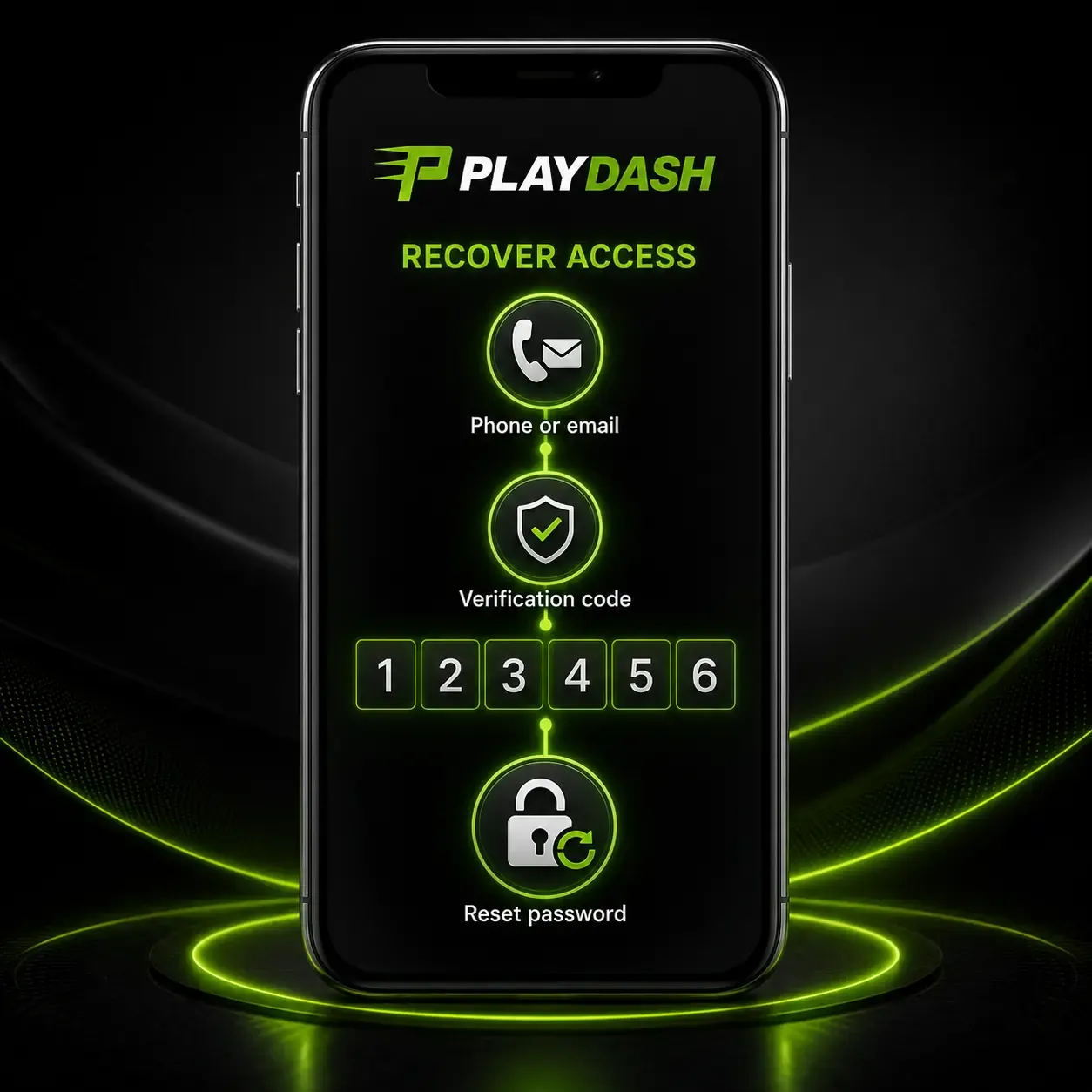
Password recovery
Use the recovery function linked to your registered phone number or email. Before resetting, check the obvious: capital letters, keyboard language and saved autofill details can produce a "wrong password" message. After a reset, return to the normal login page and sign in with the new password.
If recovery fails, usually because the registered contact is no longer reachable, contact support. Explain which part is failing: the password, the code, or access to the phone number or email itself. Support can help change contact details entered during sign-up after checking that the request is genuine. Creating another profile is not a replacement for recovering the original one and can complicate things further.
When access is restricted rather than forgotten
Some restrictions have nothing to do with a wrong password. They are linked to the account's balance or verification state, and repeated login attempts will not clear them.
| Situation | What it usually means | What to do |
|---|---|---|
| Negative balance after bet recalculation | A settled wager was recalculated and left a shortfall | Deposit at least the missing amount to restore normal use |
| Failed verification | A document could not be accepted | Follow the ticket's explanation and resubmit what it asks for |
| Correct documents accepted | The verification barrier has been cleared | Continue normally |
| Suspected account compromise | Someone else may have used the credentials | Contact support immediately |
| Password recovery problem | The recovery route itself is not working | Use the linked phone or email, or live chat |
Wait until the underlying restriction is resolved before trying to sign in again and again. If you are unsure which situation applies, ask support and quote any ticket number you received.
Full verification (KYC): what triggers it
KYC confirms identity, age, location and ownership of the payment method. You can register, browse, deposit and play before it, but it becomes mandatory in three situations published by PLAYDASH:
- you request a withdrawal;
- your total deposits exceed the equivalent of EUR 10,000;
- account activity needs additional review, for example on security or anti-money-laundering grounds.
Another PLAYDASH page states that no universal lifetime-deposit threshold is published for every market. Both point to the same practical advice: the first withdrawal is the moment unresolved identity questions start to delay money, so prepare before you need it. Verification is a security and compliance procedure; it does not affect game results.
What the checks look at
KYC is not one fixed checklist for every player. The amount of information requested can depend on the account, and a second request after your first upload does not necessarily mean something is wrong; often one check simply needs another piece of evidence.
| Type of review | What may be checked |
|---|---|
| Basic identity verification | ID, age and that the account belongs to the person named |
| Address verification | Recent proof of where you live |
| Payment verification | Whether the payment details belong to the account holder |
| Additional compliance review | Further information to resolve a security or anti-money-laundering question |
Location is part of the picture as well. KYC confirms where you live, and PLAYDASH lists countries where it does not offer accounts. Details that do not line up, such as a name spelled differently on the payment method or an address that differs from the proof you upload, can turn a routine check into a longer one.
Documents to have ready, and how to photograph them
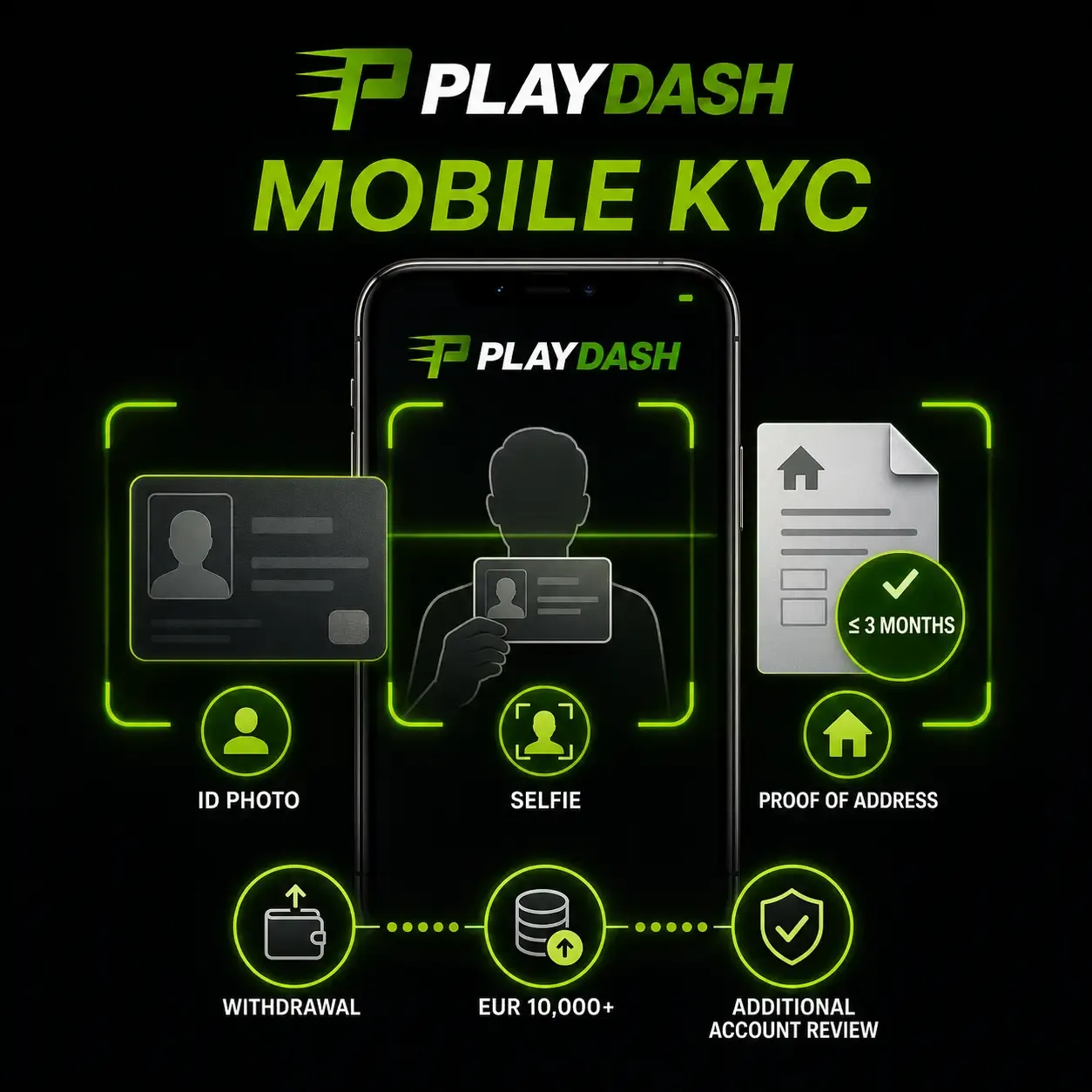
| Document | What it confirms | What makes it usable |
|---|---|---|
| Government-issued photo ID | Identity and age | Valid, unexpired, complete and clearly readable |
| Selfie holding the same ID | That the person matches the document | Face and document both visible; same ID as the one submitted |
| Bank statement or utility bill | Residential address | Issued within the last three months; shows your name, address, issuer and date |
| Payment-method evidence (if asked) | That the payment account is yours | Name on the method matches the PLAYDASH account |
Practical photography on a phone:
- Lay the document flat on a plain, contrasting surface in good light. Move away from overhead lamps that cause glare across the name, photo or number.
- Fit the whole document in the frame, all four corners visible. A cropped edge is one of the listed reasons a document can be returned.
- For the selfie, hold the same ID you uploaded, keep your face uncovered and the document details readable. Take a new photo if the first is blurred.
- Do not edit, filter or heavily compress the image. Upload the original.
- Check the date on your proof of address before uploading. A bank statement that was fine last quarter may now be too old.
Send files only through your PLAYDASH account or a confirmed support channel. Do not forward identity documents to social-media pages or to anyone who contacts you first.
Returned or delayed documents
Verification does not always finish with the first upload. A document can be accepted, returned because it cannot be checked, or followed by a request for something clearer or additional. When verification fails, PLAYDASH issues a ticket with an explanation. Read it before doing anything else.
| What was wrong | Why it causes difficulty | What to change |
|---|---|---|
| Blurred image | Details cannot be read | Retake in good light, holding the phone still |
| Cropped document | Important information is missing | Photograph the whole document |
| Expired ID | Identity evidence may no longer be valid | Use a current document |
| Edited image | Authenticity becomes harder to establish | Upload an untouched original |
| Different names | Account and document data conflict | Correct the account details where permitted, or ask support |
| Old address evidence | The address may no longer be current | Upload a bill or bank statement dated within three months |
| Selfie missing or unclear | The person-to-document link is not shown | Provide the requested selfie, not only the ID again |
Sending the same unusable photo several times will not fix the underlying issue. Correct the specific problem the ticket names. Processing time depends on the account and on whether additional checks are needed, so treat any unofficial "fixed KYC time" with caution. If the instruction is unclear, ask support what exactly is missing.
A readiness check before your first withdrawal
PLAYDASH may let you play before full verification, but the first withdrawal is where unresolved identity questions start to hold up money. Preparing beforehand means a missing item does not have to be found while a withdrawal waits:
- Your ID is in date and you can photograph it whole, without glare.
- You can take a selfie holding that same ID.
- Your bank statement or utility bill is dated within the last three months and shows the same name and address as the account.
- The payment method you will withdraw to is in your own name, and is one the cashier offers for withdrawals.
- The registered phone number or email still reaches you, in case a code or ticket is sent.
- Nothing you plan to upload is edited, borrowed or someone else's.
If any of these is not true yet, fix it before requesting the withdrawal. Preparing the files early means you are not looking for a recent bill or retaking photos while a withdrawal waits.
If someone else may have accessed the account
Under PLAYDASH's account terms, activity carried out with the correct login details and password can be treated as authorised. If you shared those details, even with someone you trust, activity with them may still look legitimate to the platform. That is why speed matters when something looks wrong.
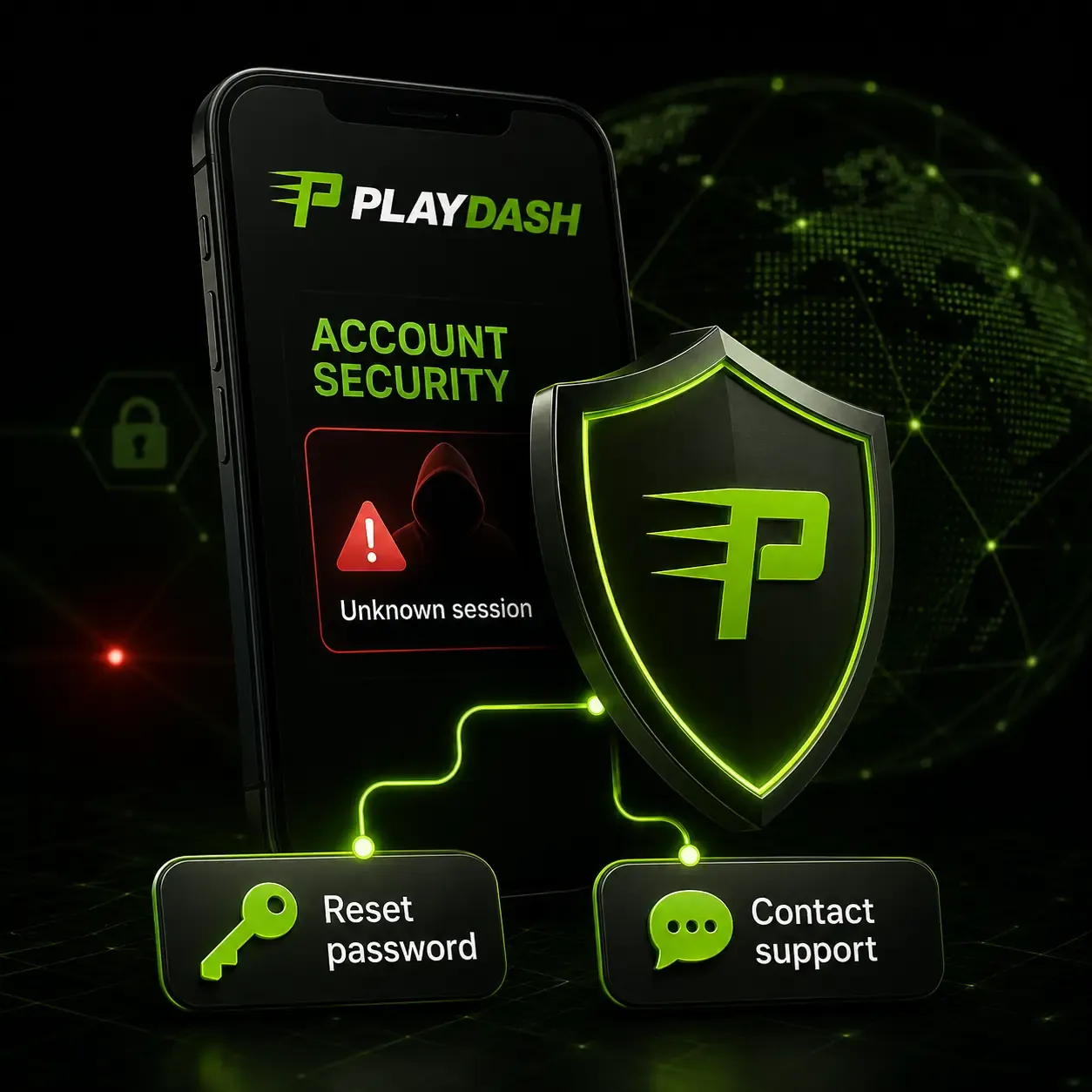
If you notice a login, bet or transaction you do not recognise:
- Stop using any link that arrived by message, and open the site yourself.
- Contact support immediately and report the unfamiliar session or transaction, with times.
- Ask for help changing the registered email or phone number if it may be compromised.
- Reset the password.
- Sign in again only once the account is secured.
Do not create a replacement account unless support specifically tells you to. Check your device too: install operating-system and browser updates, and avoid unknown browser extensions or remote-access apps, particularly while using the cashier.
On the platform side, PLAYDASH states that traffic is protected with 256-bit SSL encryption, passwords are stored in encrypted form, bank authentication takes place inside your own banking app, full card numbers are not kept, and KYC and anti-money-laundering controls apply. Those measures protect data in transit and in storage. They cannot protect an account whose password or one-time code has been handed to someone else, which is why the steps above matter.
Shared and secondary devices
There is no technical reason to use only one device, but every session left open is a risk. Sign out when you finish on a shared phone, a tablet that others use or a borrowed computer. A one-player-one-account rule also applies to devices: two people should not each run a PLAYDASH account from the same phone, because matching devices, network addresses or payment methods can be treated as signs of duplicate profiles. If you genuinely share a device, raise it with support before anyone creates another account.
Before you contact support
Support can start on an account question sooner when the first message contains what it will ask for anyway:
- the registered phone number or email (never the password);
- what you were trying to do and what happened instead;
- the date and approximate time;
- any ticket number from a verification decision;
- a screenshot of the message on screen, with passwords, one-time codes and full payment details hidden.
Live chat suits quick questions. Email is better when you need a written record, for example about verification or a complaint.
Frequently asked questions
Can I complete KYC entirely on my phone?
Yes. The ID photo, selfie and proof of address can all be photographed and uploaded from a phone. No separate app is required.
Is confirming my email the same as being verified?
No. Contact confirmation shows you control the phone or email. Full KYC checks identity, age, location and payment ownership with documents.
I forgot my password and no longer have the registered phone number. What now?
Contact support, explain that the registered contact is unreachable, and follow their checks to update it. Do not open a new account.
Why was my document returned when it is valid?
Valid documents are often returned because of the photo: blur, glare, a cropped edge or a name that does not match the account. The ticket explains which.
Do I have to verify before my first bet?
No. Verification becomes mandatory at withdrawal, above EUR 10,000 in total deposits, or when activity needs review. Preparing early simply reduces delay later.
Next steps
Once the account is set up and your documents are ready, the next task is usually the cashier. Mobile Cashier explains why the payment method you use first matters for withdrawals, and what a pending status means. If you want to check an offer before your first deposit, see Rewards on Mobile. For playing on the phone without repeating actions after a dropped connection, read Games & Sessions. The overview puts all of these tasks in order.