


What the Singapore cashier publishes, and what it leaves to your account
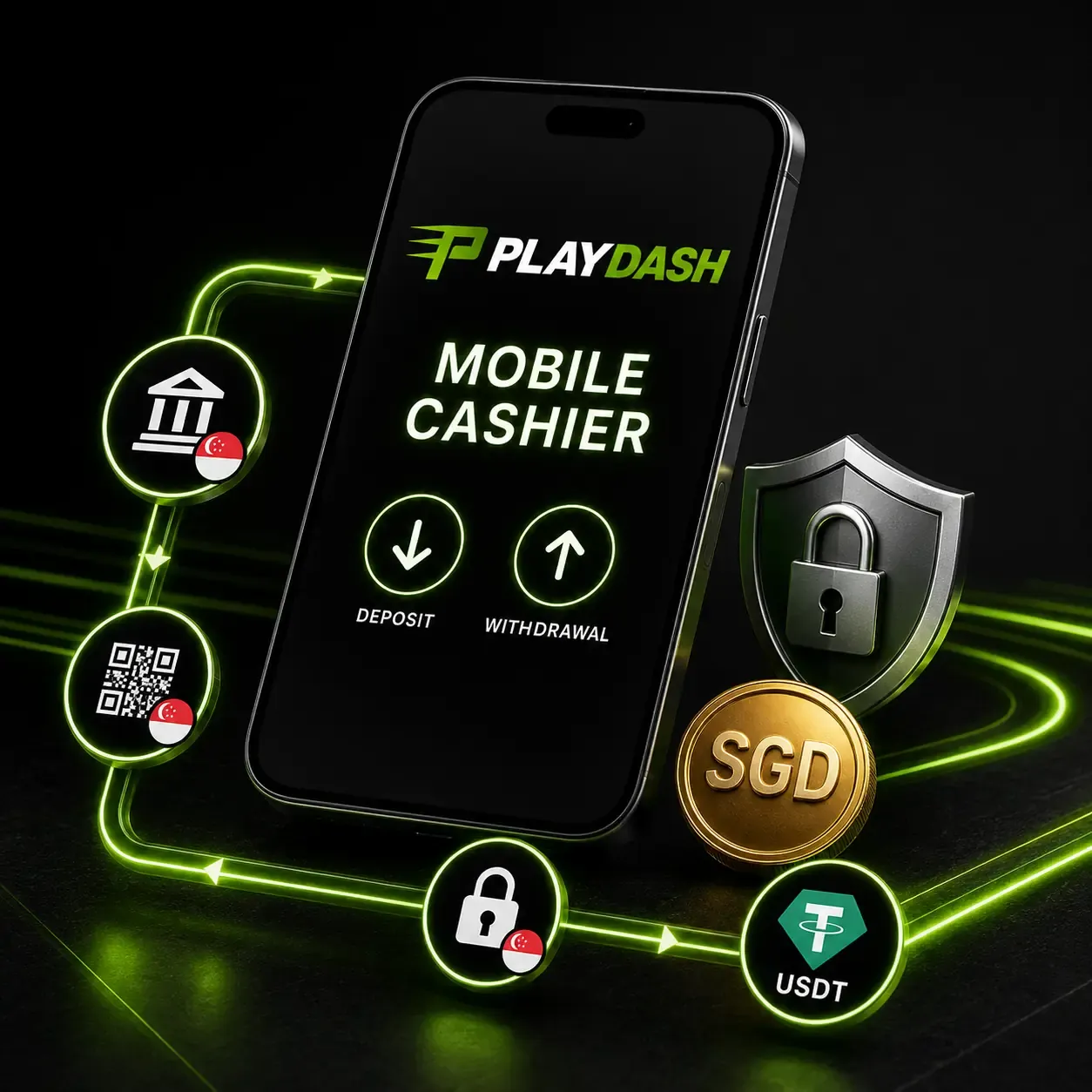
PLAYDASH lists the following payment options for Singapore-facing accounts:
- Sure Pay
- Fast Pay
- DG Pay
- Online Banking
- Singapore Local Bank
- QR Pay
- USDT through TRC-20 or ERC-20
PLAYDASH also names TruePay, SurePay, FastPay and DGPay as gateways used for supported local transactions. Availability can vary by account and region, so the methods visible in your own cashier after signing in are the ones to use. Several published details are deliberately left to the account rather than fixed for everyone:
| Detail | What PLAYDASH publishes for Singapore accounts |
|---|---|
| Account currency | The fiat currency shown during registration and in the cashier |
| Minimum deposit | Shown in the cashier for the individual account |
| Minimum withdrawal | Shown in the cashier for the individual account |
| Withdrawal processing time | Depends on method, verification status and payment provider |
| Withdrawal fee | 0% stated; any fee is displayed with the method |
| Maximum payout per bet | Shown in the current account rules |
| Daily withdrawal allowance | Counted per day and reset at 08:00 Singapore time (UTC+8) |
Some PLAYDASH pages publish payment limits in Malaysian ringgit with approximate Singapore-dollar conversions. Those examples show how method limits work, but a published MYR or SGD figure does not by itself establish the limit on your account; the Singapore cashier shows the minimum, maximum and currency that apply to you. Equally, a familiar Singapore service that does not appear in your cashier should not be assumed to work. PayNow, for example, is not confirmed in PLAYDASH's published information, and cards are not confirmed either.
Before you tap Deposit
Check these points on the cashier screen before you approve anything. On a phone it is tempting to move quickly; each item below prevents a specific later problem.
- Currency. Make sure the account currency is the one you expect. If it is not, contact support before paying; PLAYDASH does not confirm that currency can be changed afterwards, and a bank or provider conversion may change the amount credited.
- Method and its limits. Note the minimum and maximum the cashier shows for the method you have chosen.
- Fees. PLAYDASH states no withdrawal fee, but your bank or payment provider may still charge. Look for any fee displayed beside the method.
- Whether the method also pays out. Some methods accept deposits but not withdrawals. Your first deposit method can shape your later withdrawal route.
- Ownership. The payment account should be in the same name as the PLAYDASH profile. Using someone else's bank account, wallet or card can cause problems at verification or withdrawal.
- Offers. If you want a deposit-linked promotion, check whether it must be activated before you pay. Some must; activating afterwards may not count.
The bank or wallet handoff
During a deposit, PLAYDASH may open your bank's or wallet's page so you can authenticate the payment. You approve the transaction inside your bank's environment and then return to PLAYDASH. Your banking password, PIN and one-time code are entered only there; nobody from PLAYDASH or this guide needs them.
On a phone, the handoff can be interrupted: the browser may switch to the banking app and back, the screen may lock, or the network may change. If you return to PLAYDASH and the deposit does not appear straight away:
- Look at the transaction status in the cashier's history before doing anything else.
- Check your banking app for a completed, pending or failed payment.
- Wait for the status to update if your bank shows the payment as completed or pending.
- Only start a new deposit if the first one clearly failed at the bank and does not appear in the cashier.
Paying a second time "to be safe" can create a duplicate deposit. A pending payment can still complete or fail; two payments cannot be undone simply by closing the page.
An example: a deposit interrupted by the banking app
This is an illustration, not a description of a specific PLAYDASH screen. Suppose you start a QR Pay deposit, approve it in your banking app, and a phone call arrives before you switch back. When you return, the browser has reloaded and the cashier shows an empty deposit form. The tempting move is to fill it in again. The safer sequence is to open the cashier history first. If the deposit is listed as pending, wait for it to settle. If it is not listed but your banking app shows the payment as completed, do not pay again; note the bank's reference and the time, and give both to support if the deposit has not appeared once the status has had time to update. Only when the banking app shows the payment as failed or cancelled is a fresh deposit the right step.
USDT: matching the network
PLAYDASH supports USDT through two networks, TRC-20 and ERC-20. They carry the same token, but they are separate networks. The network chosen in the cashier and the network of the wallet you send from or receive to must match.
- When depositing, select the network in the cashier first and send from a wallet on that same network. Copy the address shown rather than retyping it, and compare the first and last characters before sending.
- When withdrawing, enter a wallet address that belongs to the network you select. An address from one network entered under the other may not arrive where you expect.
- Crypto withdrawals require a previous crypto deposit. PLAYDASH states that cryptocurrency withdrawal is available only to users who have deposited with cryptocurrency. If you have only ever deposited by bank or QR, plan your withdrawal around those routes.
Network fees charged by the blockchain or your wallet are separate from PLAYDASH's own stated 0% withdrawal fee.
Requesting a withdrawal
A withdrawal is requested through the cashier once the required verification is in place:
- Open the withdrawal section.
- Choose an eligible method, typically one connected to how you deposited.
- Enter an amount within the limits the cashier shows.
- Confirm the bank, wallet or network details.
- Submit the request.
- Track its status and account notifications.
PLAYDASH counts withdrawals against a daily allowance that resets at 08:00 UTC+8, which is 08:00 Singapore time. The published allowance for this cycle is five requests per day. Whatever limits your cashier shows, a larger amount may need to be spread across more than one daily cycle, and splitting a request into many small ones uses up the request count quickly.
Reading a pending or delayed status
A pending withdrawal is not necessarily a rejected one. PLAYDASH lists the reasons a request can wait or be returned:
| Reason | What you can check |
|---|---|
| Verification not finished | Verification status in the profile; any open ticket |
| Active bonus wagering not complete | The bonus balance and its wagering progress |
| Incorrect bank or wallet details | The details entered in the request |
| Profile name and payment owner do not match | Whether the method is in your own name |
| Request above the available limit | The limits and daily counter shown in the cashier |
| Method supports deposits but not withdrawals | Which methods the cashier offers for withdrawal |
| Additional anti-money-laundering review | Account notifications |
| Processing at the payment provider | Status updates; your bank or wallet |
Start with the account notifications and the transaction status. If neither explains the delay, contact support with the details listed below. Cancelling and resubmitting the same request repeatedly rarely helps and can use up the daily request count.
How an active bonus affects a withdrawal
Unfinished bonus wagering is one of the reasons PLAYDASH lists for a delayed or returned withdrawal. If you activated a deposit-linked offer, the related funds can be subject to that offer's conditions until they are met. Before requesting a withdrawal, open the bonus balance and check the wagering progress shown there.
Two points help avoid a dispute. First, breaking a bonus rule can cost more than time: PLAYDASH material notes that a wager above a bonus's maximum bet can breach the campaign terms even when the game itself allows that stake, and the reward or related winnings can then be removed. Second, if you want to withdraw before the wagering is complete, ask support how the bonus would be treated rather than assuming. The answer depends on the offer you accepted, which is why the promotion card is worth a screenshot before you activate it.
Payment security on a phone
PLAYDASH states that traffic is protected with 256-bit SSL encryption, that bank authentication happens inside your own banking app and that full card numbers are not stored. Your side of the arrangement matters as much:
- Install operating-system and browser updates, and avoid unknown browser extensions and remote-access apps while you use the cashier.
- Prefer a private network to public Wi-Fi when you pay.
- Use only payment methods registered in your own name.
- Never share a one-time code, PIN or banking password, including with anyone who says they are from support.
- Hide those details, and full card or wallet credentials, in any screenshot you send.
Records worth keeping
A short record of each transaction turns a long support conversation into a short one. For every deposit or withdrawal, note or screenshot:
- the transaction ID or reference shown in the cashier;
- the amount and currency;
- the method, and for USDT the network;
- the date and approximate time;
- the status displayed, and any bank or wallet confirmation.
When you contact support, include the registered contact or account ID, a clear description of what happened, and the screenshots above. Hide passwords, one-time codes, PINs and full payment credentials. Live chat suits quick checks; email is better for complaints, verification files and cases where you want a written record.

When to stop retrying
Some situations call for waiting or asking rather than trying again:
- A deposit is pending at the bank. Wait for it to settle or fail before paying again.
- A withdrawal is pending for verification. Complete what the verification ticket asks for; resubmitting the withdrawal does not speed up the check.
- The cashier rejects a method repeatedly. The method may not be available to your account. Choose another listed method or ask support.
- A crypto transfer has not arrived. Check the transaction on the network with your wallet first, then send support the network, address and transaction reference.
- You are adding money to recover losses. Stop. That is a warning sign rather than a payment problem; see Responsible gambling.
Changing devices does not change the rules
A deposit made on one phone and a withdrawal requested on another are the same account's transactions. The balance, history and limits stay with the login. A home-screen shortcut leads to the same cashier, and an unofficial APK cannot create different payment limits.
Frequently asked questions
What are the minimum deposit and withdrawal for Singapore accounts?
PLAYDASH shows them in the Singapore cashier for each account. A published ringgit figure or its approximate SGD conversion is an example, not confirmation of your account's limit.
Does PLAYDASH charge a withdrawal fee?
PLAYDASH states a 0% withdrawal fee. Your bank, payment provider or blockchain network may still charge its own fee.
How long does a withdrawal take?
It depends on the method, your verification status and the payment provider. Incomplete KYC or unfinished bonus wagering are common causes of delay.
Can I withdraw in USDT if I deposited by bank?
PLAYDASH states that crypto withdrawal is available only after a crypto deposit. Use a withdrawal method the cashier offers for your account.
My withdrawal is pending. Should I cancel it and try again?
Check account notifications and verification status first. If nothing explains the delay, contact support with the transaction reference, amount, method and request time.
Next steps
If a withdrawal is waiting on documents, the photography tips and return reasons in Account & Verification will help you resubmit correctly. If you deposited to claim an offer, Rewards on Mobile shows how to confirm that the reward actually appeared before you play. The overview connects the cashier with the rest of the phone journey.